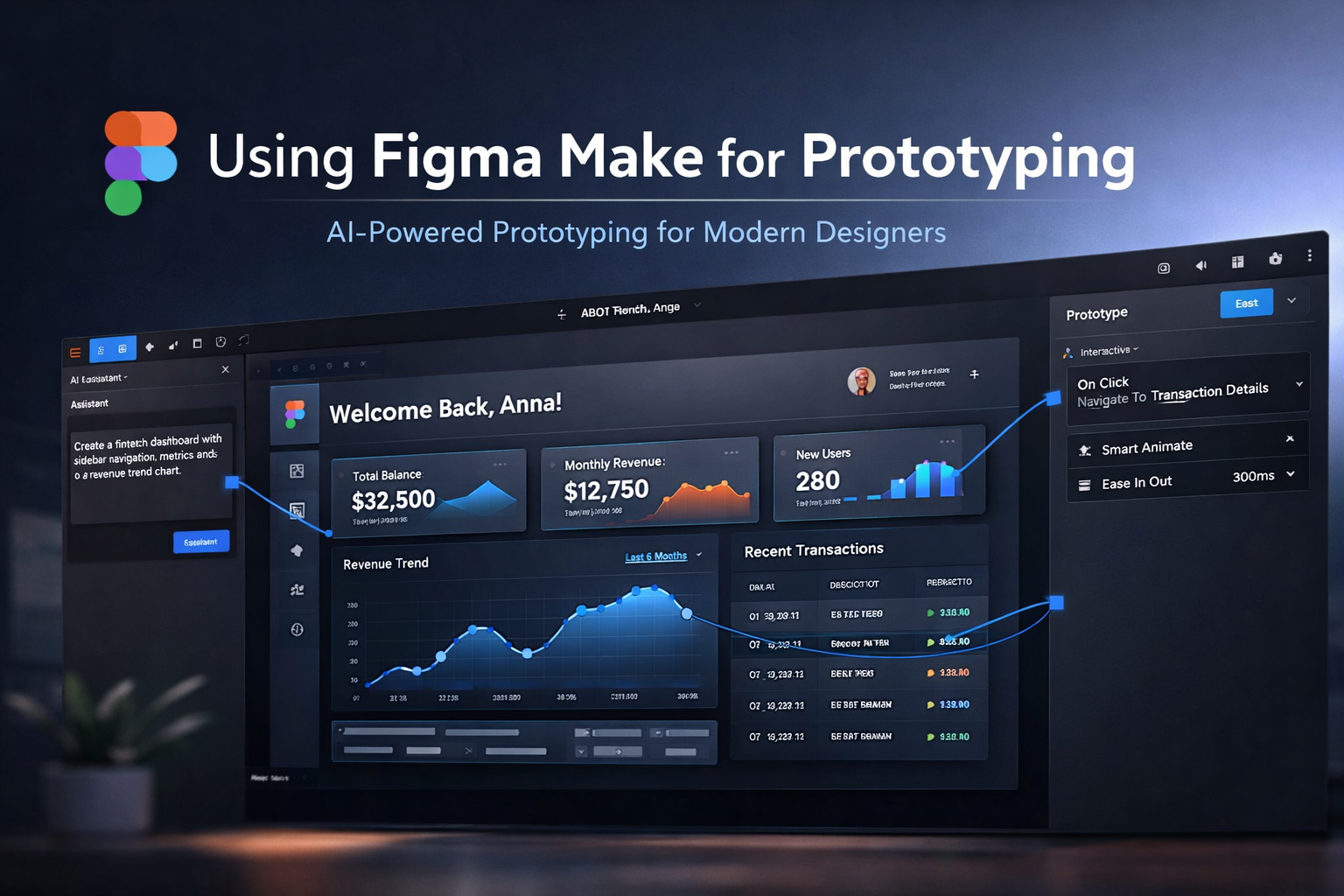
How to Use Figma Make for Prototyping: A Practical Guide for Modern Designers

How to Use Figma Make for Prototyping: A Practical Guide for Modern Designers
In today’s fast-moving digital landscape, rapid prototyping is essential for designers, product managers, and developers. Modern digital products demand speed, clarity, and iteration. Figma Make, powered within the Figma platform, helps transform written prompts and ideas into structured, interactive UI prototypes faster than traditional manual workflows.
If you want to improve your UI/UX prototyping workflow, leverage AI-driven design, and accelerate product validation, here’s a complete step-by-step guide.
What Is Figma Make?
Figma Make enhances the prototyping process by enabling AI-assisted layout and component generation. Instead of building each screen from scratch, designers can use prompt-based instructions to generate:
- Dashboard layouts
- Landing pages
- Mobile app interfaces
- SaaS admin panels
- Responsive web UI structures
This makes it especially powerful for rapid MVP prototyping and early-stage product design.
Step 1: Write a Clear and Structured Prompt
The quality of your prototype depends heavily on your input prompt. Be descriptive and structured.
Weak prompt: Create a dashboard.
Better prompt: Create a fintech dashboard with sidebar navigation, KPI cards, a revenue line chart, and a recent transactions table in a modern SaaS style.
Include industry, device type (mobile app prototype, responsive web design), target audience, and interaction goals for better results.
Step 2: Generate Layouts and Components
Once the prompt is submitted, Figma Make generates structured UI layouts. You can instantly:
- Convert blocks into Auto Layout
- Create reusable components
- Add variants for hover, active, and disabled states
- Adjust spacing, typography, and color styles
This dramatically speeds up design system implementation and ensures scalability.
Step 3: Build Interactive Prototypes
A prototype isn’t complete without interaction design. After generating screens:
- Switch to Prototype Mode
- Connect frames using interaction nodes
- Add triggers (On click, On hover, After delay)
- Apply Smart Animate transitions
This transforms static UI into clickable, presentation-ready prototypes suitable for stakeholder reviews and user testing.
For more insights into improving your design delivery pipeline, explore our guide on How to Improve Your UI/UX Workflow for Faster Delivery.
Step 4: Refine With Iterative AI Feedback
One of the biggest advantages of Figma Make is iteration speed. You can modify prompts to:
- Simplify layouts
- Switch to dark mode
- Increase whitespace
- Modernize typography
- Improve accessibility
However, always apply human judgment. AI accelerates production, but user-centered design principles, usability testing, and accessibility compliance still require designer expertise.
Step 5: Collaborate and Test Early
Figma’s real-time collaboration allows teams to:
- Share live prototype links
- Collect stakeholder comments
- Run usability testing sessions
- Iterate quickly based on feedback
This makes Figma Make ideal for startup MVP design, SaaS interface prototyping, landing page wireframing, and mobile app product discovery.
Best Practices for Using Figma Make
- Be highly specific in prompts
- Use structured UI terminology
- Combine AI generation with a design system
- Validate accessibility standards
- Test early with real users
Conclusion
Figma Make is reshaping AI-assisted UI/UX prototyping by reducing production time while maintaining flexibility. By combining intelligent prompt-based layout generation with Figma’s powerful prototyping tools, designers can move from idea to interactive prototype significantly faster.
Start experimenting with small projects, refine prompts, and iterate deliberately. Let AI handle the repetitive structure — and focus your expertise on crafting meaningful user experiences that convert.
#UIUXDesign #FigmaMake #Prototyping